
Template Rules
Overview
Template Rules keeps iLogic rules synchronized across many components by using template files as the source of truth. Use it when you maintain a template library and need existing components to match the latest template rule logic (and optionally run that logic) without manually opening each file.
How It Works
Template Rules processes each target component by locating its matching template document in the selected Template Folder. Template matching is based on the component’s naming convention so the correct template can be found automatically.
Once a template is found and opened, the selected rule(s) are loaded from the template document and then applied to the target component according to the selected Command. Sync commands ensure the rule exists in the component and matches the template text. Update commands only update an existing rule in the component and do not create missing rules. Run Only executes the template rule text without changing which rules exist in the target component.
If the selected command includes running, Template Rules can optionally run suppressed rules. Results are logged per component and rule so you can quickly identify missing templates, missing rules, or rules that fail to run.
Context Menus
The following input provides a right‑click context menu and a small button beside the input. Both open the same selection dialog.
- Rules: Opens a list of rule names. You will be prompted to pick a component first. The dialog then lists the rules available in that component. Select one or multiple rules and click OK to insert them as a comma‑separated list.
The rule list is populated from the component you pick, so the available rule names reflect that component.
Usage Instructions
- Open an assembly.
- Start Template Rules.
- Set the Template Folder to the location that contains your template files.
- Select the Command (Sync/Update/Run).
- Select All Rules or enter one or more rule names as a comma‑separated list.
- If the command includes running rules, choose whether suppressed rules are allowed to run.
- Choose how to select target components and configure filtering. Use Preview to highlight targets.
- Click Apply and review the results report.
Troubleshooting
- Apply is disabled: Verify the Template Folder exists and either All Rules is selected or at least one rule name is entered. If Selection Set is selected, ensure there is an active selection set.
- Templates not found: Confirm the template naming matches your component naming convention and that the correct Template Folder is selected.
- Template file won’t open: Check file permissions, read-only status, and whether the template file is accessible on disk.
- A rule reports “not found”: The rule name must exist in the matching template document. Use the picker to avoid typos, or switch to All Rules.
- Rules did not run: If a rule is suppressed and running suppressed rules is off, the command will skip execution.
Examples
Example: Propagate a new template rule version
Use Update Only with a short list of rule names to refresh existing components after improving rules in a template.
Example: Refresh and execute logic in one pass
Use Sync and Run to synchronize rule text and then run rule logic across the selected component set.
Example: Run template logic without creating rules
Use Run Only when you want to execute the template rule text without changing which rules exist in the component.
Dialog Box Input
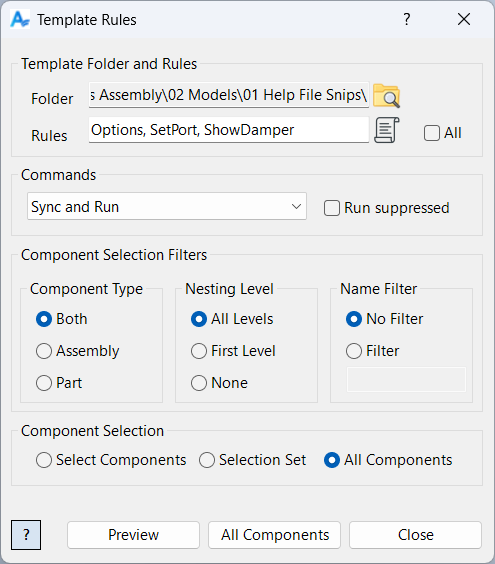
Command: Select Sync/Update/Run behavior.
Rules: Choose All Rules or enter a comma-separated list.
Template Folder: Folder containing component templates.
Run suppressed: Controls whether suppressed rules may execute when the command includes running rules.
Component Selection: Choose how components are selected and filtered.
